Do I Need a Controller to Build Levels? Touch vs. Gamepad vs. Mouse
🎮 Short answer: no. You do not need a controller to build a level in Lokko. That question comes up a lot, usually from someone sitting at a PC with no gamepad plugged in, wondering if they're stuck watching instead of building. You're not — here's how touch, gamepad, and mouse-and-keyboard actually stack up for building, not just for playing.
The Short Version
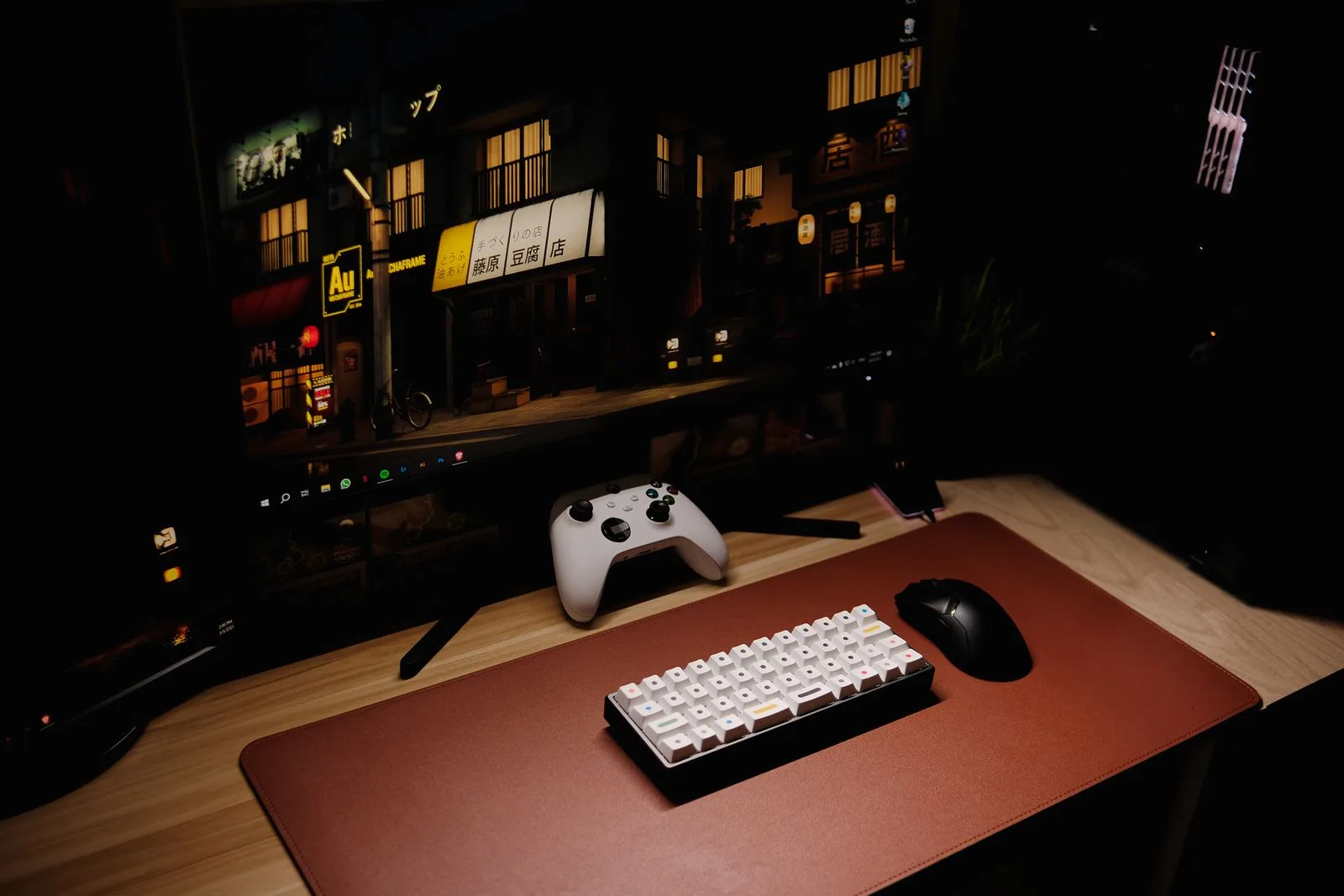
- On PC through Steam, you can play and build entirely with mouse and keyboard — no controller required.
- On PS5, you build with a controller (DualSense), since that's the platform's native input.
- On iOS, you build with touch — tapping and dragging directly on the screen.
- Lokko's 3D Editor explicitly supports all three: controller, keyboard/mouse, and touch, so the "right" input is really whichever one matches the device in front of you.
The editor doesn't care which input built a level — only the level itself matters once it's published. Nobody playing your level can tell whether you placed that platform with a thumbstick, a mouse, or a fingertip.
Mouse and Keyboard: Precise, Fast for Menus
Mouse and keyboard is the default for the browser-based 2D Editor and 3D Editor, and it's also fully supported in the Steam version of the full game — you don't need to plug in a controller at all to build or play on PC.
Where it wins:
- Precision placement. A cursor gives you pixel-level (or grid-cell-level) accuracy that's hard to match with a thumbstick.
- Fast menu navigation. Clicking directly on a tool or object beats cycling through a radial menu with shoulder buttons.
- Comfortable for long sessions. If you're building for an hour, a mouse and a stable desk setup tend to be less fatiguing than holding a controller the whole time.
Where it's weaker: playtesting your own platforming can feel slightly less natural on keyboard than with an analog stick, since movement is binary (key down/up) rather than variable-speed.
Gamepad: Native to Console, Still Solid for Building
A gamepad is a handheld controller with sticks, buttons, and triggers — on PS5, that's Sony's DualSense, and it's the natural way to build there. Lokko's editors are designed around full DualSense support, including using the triggers and sticks to navigate menus and place objects without ever needing a second input device.

Where it wins:
- No extra hardware. If you're playing on PS5, the controller is already in your hands.
- Great for playtesting. Analog movement makes checking your own level's difficulty curve feel exactly like how players will actually experience it.
- Comfortable on a couch, away from a desk setup entirely.
Where it's weaker: menu-heavy tasks — picking a specific object out of a long list, fine-tuning a numeric value — tend to take a couple more button presses than a single click would.
For more on getting the most out of a controller specifically, see our guide on best controller settings for platformers on PS5.
Touch: The Most Direct Input for Placing Things
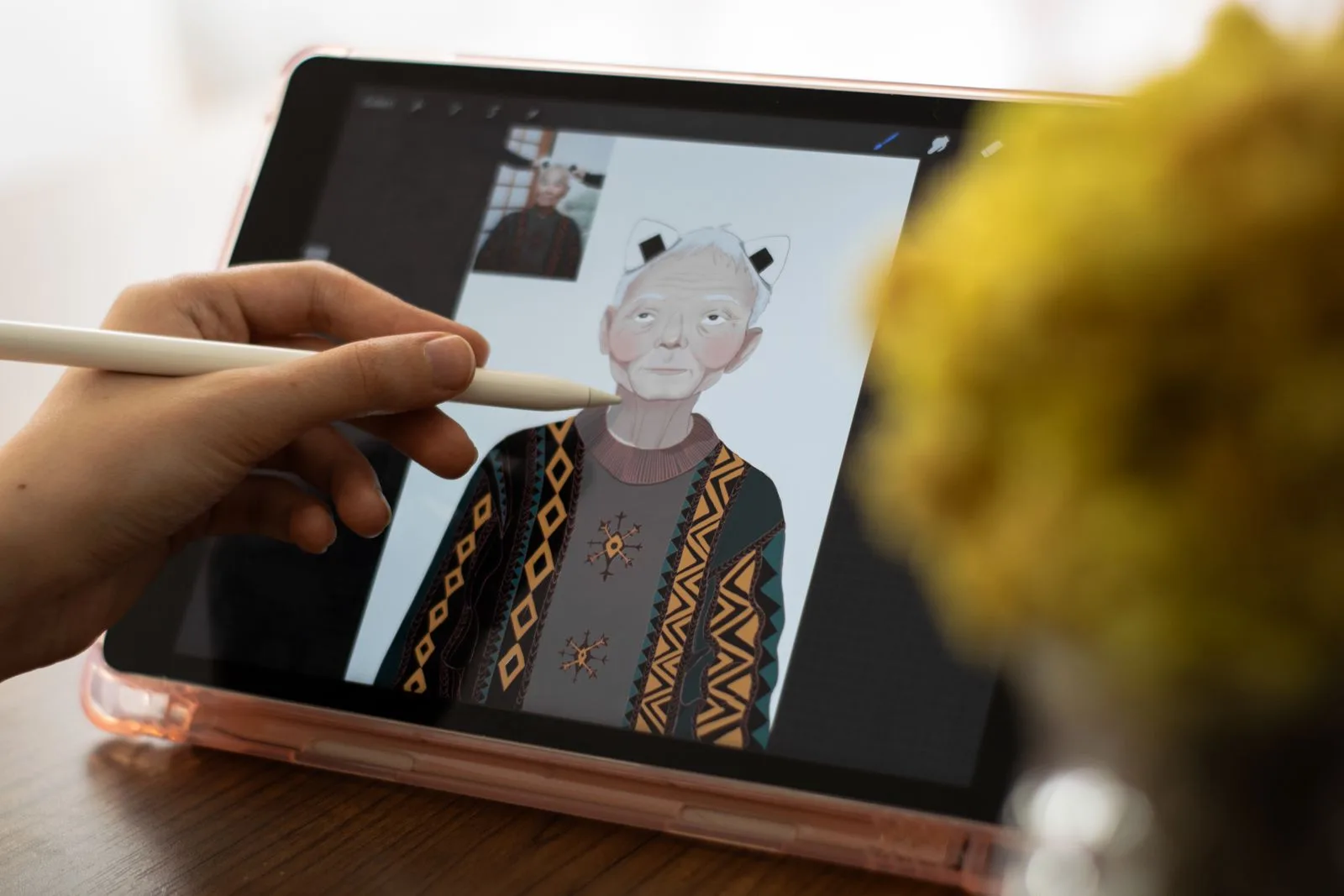
On iOS, building happens entirely through touch — tapping to place an object, dragging to position it, pinching to adjust the camera. It's arguably the most direct of the three inputs, since there's no cursor standing between your intent and the object on screen. Apple's own Human Interface Guidelines for touchscreen gestures describe gestures as enhancing "the experience of direct manipulation," which is the core advantage of touch over pointer-based input — you're moving the object itself, not a proxy for it.
Where it wins:
- Nothing between you and the object. Dragging a platform with your finger is about as direct as level building gets.
- No hardware needed beyond the device itself — no controller, no separate mouse.
- Great for quick sessions — pulling out a phone or tablet for ten minutes is lower-friction than sitting down at a desk or console.
Where it's weaker: placing several objects with exact alignment relative to each other can take a bit more care than with a cursor, since your finger covers more of the screen than a mouse pointer does.
Quick Comparison
| Input | Best for | Where it's used |
|---|---|---|
| Mouse & keyboard | Precision placement, fast menus, long sessions | PC (Steam), browser 2D/3D Editors |
| Gamepad (DualSense) | Native console building, realistic playtesting | PS5 |
| Touch | Direct placement, short sessions, no extra hardware | iOS |
Building and Playtesting Are Different Tasks
The three sections above compare inputs as if "building" were one task, but it's actually two different tasks wearing the same name. Placing, selecting, and arranging objects is a pointing task — you're choosing a location and an item, which is exactly what a cursor or a finger is good at, and exactly what an analog stick is comparatively clumsy at. Playtesting your own level, on the other hand, is a movement task — running, jumping, and reacting in real time — which is exactly what an analog stick is good at and what a mouse or touchscreen can't fully replicate. That's why the "best" input genuinely splits by task rather than by platform alone. The fastest workflow on any device is often building with a pointer-style input and playtesting with whatever gives you the most natural movement feel, even if that means switching input mid-session where your platform allows it.
So Which One Should You Use?
Whichever one matches the device you already have open. If you're on a PC with Steam, mouse and keyboard works completely on its own — plenty of PC creators build entire levels without ever touching a controller. If you're on PS5, the DualSense is a fully capable building tool, not just a play-mode input. If you're on iOS, touch handles the whole workflow directly.
The only real advice worth following: don't wait to find "the right" input before you start building. Open whichever editor matches what's in front of you right now.
Try the 2D Editor Free Try the 3D Editor Free
Not sure what to build first? Our full creator workflow, from idea to published level, walks through the whole process regardless of which input you're using.
Key Takeaways
- You do not need a controller to build a Lokko level — mouse and keyboard, touch, and gamepad are all fully supported.
- On PC through Steam, mouse and keyboard alone is enough to play and build the entire game.
- Gamepad tends to feel best for playtesting; mouse or touch tends to feel faster for the actual building and menu work.
- Touch is a genuinely complete building input on iOS, not just a shortcut for small edits.
- The best input is whichever one matches the device you already have in front of you — so start building now, not after you've found the "ideal" setup.
Frequently Asked Questions
Do I need a controller to build a level in Lokko?
No. Lokko's editors support controller, keyboard/mouse, and touch — you can build a full level with whichever input you already have, and switch between them across sessions since your level saves independently of what you built it with.
Can I build levels with just a mouse and keyboard?
Yes. On PC through Steam, you can play and build entirely with mouse and keyboard — no controller required — and the browser-based 2D and 3D Editors are built around mouse input by default.
Is touch good enough for building a real level, or just for quick edits?
Touch is genuinely capable of full level builds, not just quick tweaks — placing and dragging objects directly with a finger is one of the most direct ways to build, though precise multi-object alignment can take a bit more patience than with a cursor.
Which input is best for playtesting versus building?
Controller tends to feel best for playtesting a platformer, since movement and jumping map naturally to sticks and buttons, while mouse or touch tends to feel faster for the building phase itself, since placing and selecting objects is closer to pointing than to navigating a character.