Best Controller Settings for Platformers on PS5
🎮 Most players never touch their PS5 controller settings, and it's costing them clean jumps. Platformers live or die on tiny, precise inputs — a stick nudge that's a fraction too small, a jump button that's a half-second too slow to reach, a trigger fighting you when it doesn't need to. None of that gets fixed by getting "better" at the game. It gets fixed in a settings menu. Here's what's actually worth adjusting on a DualSense controller specifically for platforming, and why each setting matters more here than it does in a shooter or racer.
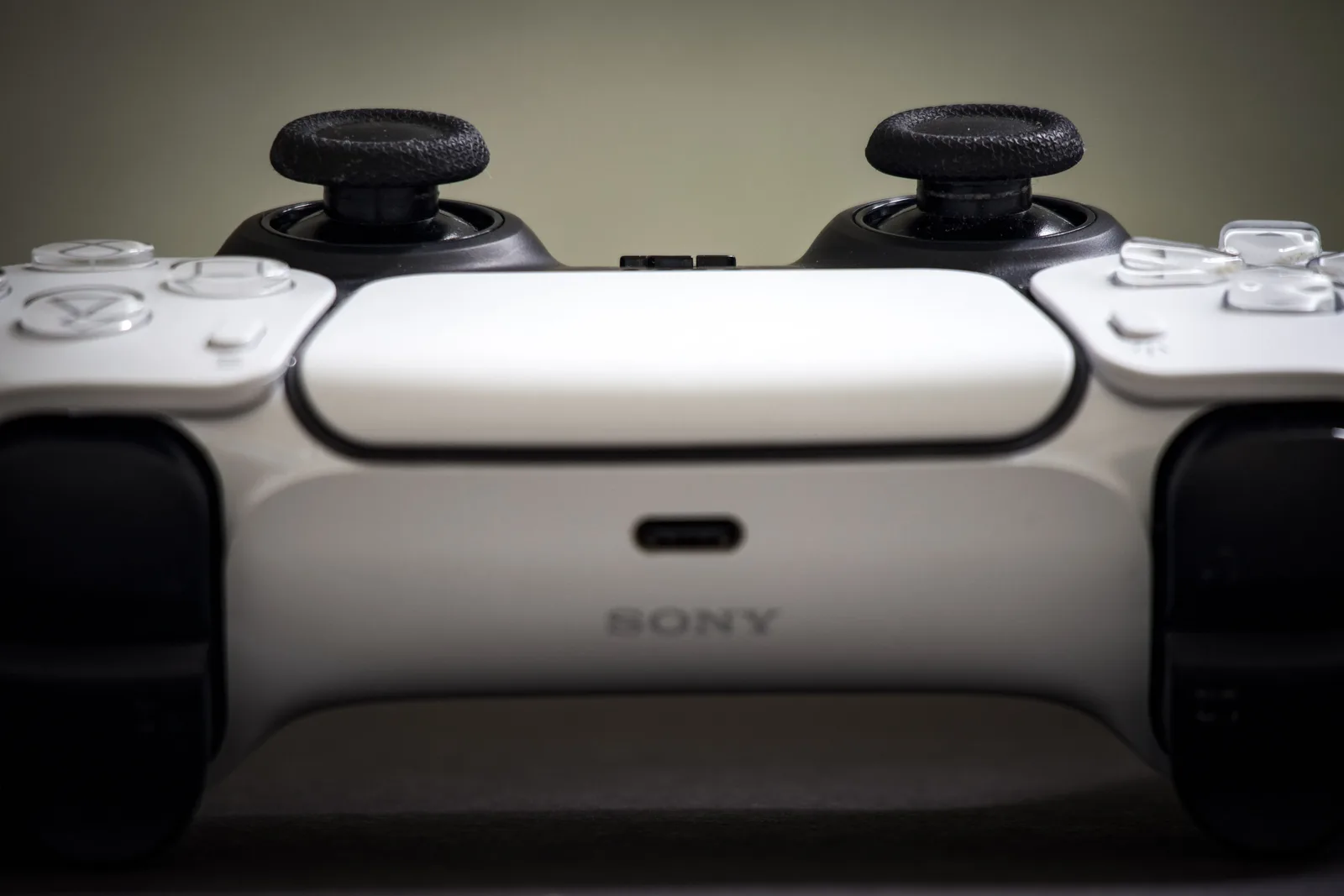
Why Platformer Settings Aren't the Same as Shooter Settings
Most controller settings guides are written for shooters, and the advice doesn't always transfer. A shooter cares about aim stability, recoil control, and not overshooting a target. A platformer cares about exact timing and exact distance — did you press jump at the right frame, did you move exactly far enough to land on a ledge and not fall short or overshoot into a hazard.
That difference changes which settings actually matter:
- Deadzone matters more, because tiny stick movements need to register quickly for precise platform edges.
- Adaptive triggers matter less, because most platformers don't map resistance to L2/R2 the way shooters and racers do.
- Button placement matters more for jump specifically, since it's the single most-pressed button in the genre.
- Vibration is more of a comfort setting than a performance one, but it adds up over long sessions.
Stick Deadzone: The Setting Most Players Skip
Deadzone is how far you have to push a stick before the game registers any movement at all. A larger deadzone ignores small stick drift (handy if your controller has some wear), but it also means small, precise movements — the kind platformers demand constantly — get ignored or delayed.
For platforming specifically:
- Lower the deadzone slightly from default if your controller is in good condition, so small directional adjustments near platform edges register sooner.
- Raise it slightly instead if you notice unintended movement when the stick is centered — a sign of stick drift rather than a setting problem.
- Test the change in a level with tight ledges rather than open ground, since that's where deadzone differences actually show up.
You'll find this under your PS5 system's controller settings or, in many games, inside that game's own control options. The exact menu path can vary by game and by system software version, so check both places rather than assuming it's only in one.
Deadzone tuning won't make you faster — it'll make your inputs match your intent sooner. That's a bigger deal on a platform's edge than almost anywhere else in gaming.
Vibration and Haptic Feedback: Turn It Down for Long Sessions
The DualSense's haptics are genuinely impressive, but constant buzzing feedback during a long platforming session can blur into background noise or, for some players, contribute to hand fatigue. Since platformers rarely rely on vibration to communicate essential gameplay information the way, say, a racing game uses rumble to signal tire grip, there's little downside to dialing it back.
- Try lowering vibration intensity a notch or two before turning it off entirely — some games still use light haptic cues (landing, collecting items) that are nice to keep.
- If you're doing back-to-back attempts on a hard section, turning vibration off entirely removes one more source of hand fatigue.
- This is a personal-preference setting, not a performance one — there's no "correct" level, just what keeps your hands comfortable over a session.
Adaptive Triggers: Usually Fine to Turn Off
Adaptive triggers add physical resistance to L2/R2, and they're a genuine highlight of the DualSense in games built around them — bowstring tension, brake pedal feel, weapon recoil. Platformers, though, mostly don't use L2/R2 for anything that benefits from resistance. Jump, dash, and grab are almost always mapped to face buttons or shoulder bumpers instead.
- If a platformer does put something meaningful on the triggers, leave adaptive resistance on and see how it feels — some games use it well even outside shooters and racers.
- If you notice your triggers feel stiffer than you'd like for no clear gameplay reason, setting trigger intensity to weak or off in your PS5 system settings removes resistance across the board without affecting any other input.
- This setting lives in your PS5 system's controller/accessories settings, and some games also expose their own trigger effect toggle — check in-game options too if a specific title feels off.
Where to Spend Your Settings-Menu Time
Not every setting on this page deserves equal attention. Deadzone and jump remapping change what happens on nearly every single input you make, so getting those right pays off constantly throughout a session. Vibration and adaptive triggers, by contrast, are comfort settings — they don't change whether an input registers correctly, only how the controller feels while you make it. If you only have a couple of minutes before diving into a new platformer, checking deadzone and confirming jump is mapped somewhere comfortable will do more for your actual performance than tuning haptics or trigger tension ever will.
Button Remapping: Move Jump Somewhere That Actually Works for You
Jump is the single most-pressed button in almost any platformer, so its default placement matters more than any other single input choice. If reaching it feels even slightly awkward, that friction repeats hundreds of times per session.
- Remap at the system level if you want a change that applies across every game — the PS5 supports custom button mapping profiles you can switch between.
- Check for in-game remapping too; many platformers let you set jump, dash, and grab independently of your system-wide profile, which is useful if different games favor different layouts.
- Consider swapping jump off the button you use for camera or menu actions if your current layout has you double-dipping on one finger for two different jobs.
See PS5 games worth trying next
PS5 Accessibility Features Are Worth a Look Even If You Don't Need Them
They're not just for players who need them for physical reasons. The PS5's accessibility settings include options that are broadly useful for platforming too. A few worth knowing about:
- Hold-to-toggle button behavior, so a button that normally requires holding can instead be tapped once to stay active — handy for actions you'd otherwise have to hold through a long platforming sequence.
- Custom button mapping for one-handed play, which can also just mean consolidating everything onto your dominant hand's reach for faster reactions.
- Adjustable input timing options in some games, letting you widen or narrow how forgiving a jump or dash window is.
These sit in your PS5 system's accessibility menu, alongside the standard controller settings. They're worth a look even if you've never needed accessibility features before, since several of them double as comfort or performance tweaks for anyone.
The best controller setup is the one you stop noticing. If you're thinking about your controller instead of the platform ahead of you, something in these settings is still worth adjusting.
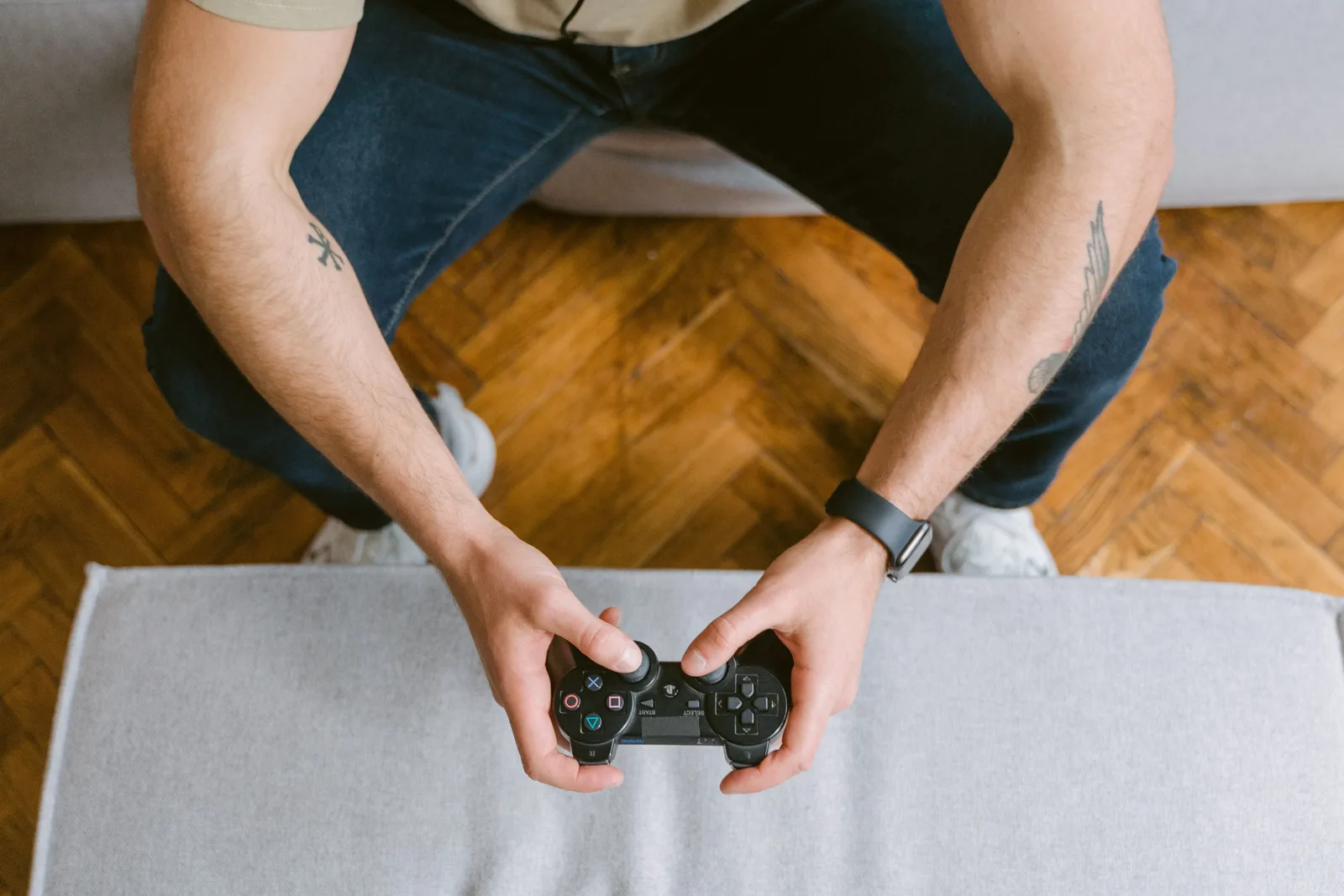
Putting It Together on a Platformer Like Lokko
These aren't settings you tune once and forget. They're worth revisiting whenever you pick up a new platformer, since default sensitivity and trigger behavior can feel different from one game to the next. Lokko, a free-to-play platformer built around creating, sharing, and playing user-generated levels, is available on PS5, and the same deadzone, vibration, trigger, and remapping adjustments covered here apply just as well there as in any other platformer. If you're building or testing your own levels, precise, comfortable input settings matter even more, since you'll be repeating the same jumps far more often than a typical player would.
If you're new to platformers built around user-generated content, the 2D Editor guide and the roundup of new console games worth playing are both good next stops.
Key Takeaways
- Lower your stick deadzone slightly for more responsive small movements near platform edges — raise it instead only if you're fighting stick drift.
- Turn vibration down or off for long sessions; it's a comfort setting, not a performance one, in most platformers.
- Adaptive trigger resistance rarely matters in platformers — setting it to weak or off is a safe default unless a specific game uses it deliberately.
- Remap jump at the system or in-game level if its default placement feels awkward — it's the most-pressed button in the genre.
- Check PS5 accessibility settings even if you don't need them for physical reasons — hold-to-toggle and one-handed remapping can double as comfort features for anyone.
- These settings apply directly to any PS5 platformer, including Lokko.
Building rather than just playing? See how controller stacks up against mouse and touch for actually building levels.
Frequently Asked Questions
What's the single most important controller setting for platformers on PS5?
Stick deadzone is usually the biggest win. A smaller deadzone makes small directional nudges register sooner, which matters far more in a platformer's tight jumps than in a shooter's aiming, where a larger deadzone often helps avoid accidental drift.
Should I turn off adaptive triggers for platformers?
Most platformers don't use adaptive trigger resistance the way shooters or racers do, so there's rarely a reason to fight extra tension on L2/R2. Setting trigger intensity to off or weak is a safe default unless a specific game uses the triggers for something you want to feel.
Does turning down vibration actually help with platforming?
It won't change your inputs, but many players find that reducing vibration/haptic intensity — or turning it off for long sessions — reduces hand fatigue and lets them focus purely on stick and button feedback instead of buzzing feedback.
Can I remap jump to a different button on PS5?
Yes. The PS5 lets you remap buttons at the system level for all games, and many titles also offer their own in-game remapping. If jump feels awkward on its default button, moving it to a spot your thumb reaches faster is a completely valid fix.
Are PS5 accessibility settings only for players with disabilities?
No. Features like button-hold-to-toggle, remapping, and one-handed layouts under the PS5's accessibility settings are genuinely useful for anyone who wants a more comfortable or more precise setup, not just players who need them.
Do these settings apply to Lokko on PS5?
Yes. Lokko is a free-to-play platformer available on PS5, so the same deadzone, vibration, trigger, and remapping adjustments covered here apply directly to it.